The following is applicable to both Kubernetes Agent and Kubernetes Worker.
During a deployment, Octopus Server first sends any required scripts and packages to Tentacle which writes them to the file system. The actual script execution then takes place in a different process called Calamari, which retrieves the scripts and packages directly from the file system.
On a Kubernetes agent (or worker), scripts are executed in separate Kubernetes pods (script pod) as opposed to in a local shell (Bash/PowerShell). This means the Tentacle pod and script pods don’t automatically share a common file system.
Since the Kubernetes agent/worker is built on the Tentacle codebase, it is necessary to configure shared storage so that the Tentacle Pod can write the files in a place that the script pods can read from.
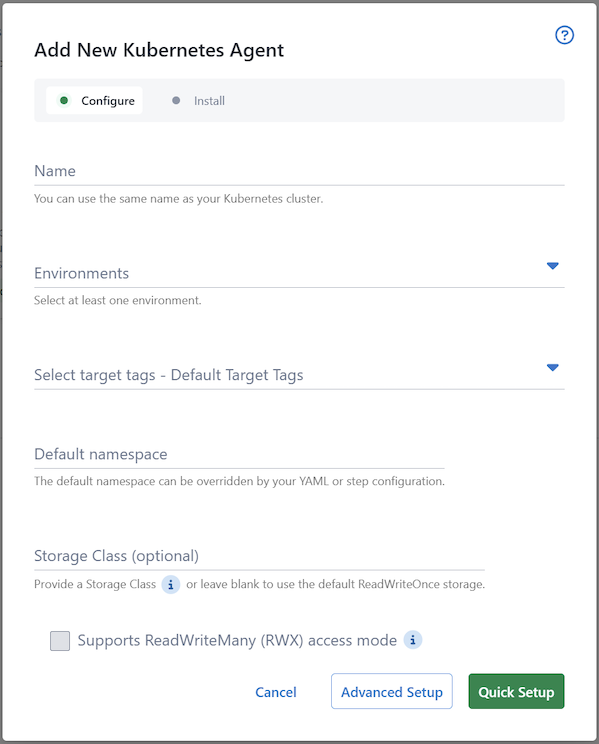
We offer two options for configuring the shared storage - you can use either the default ReadWriteOnce cluster default storage or specify a Storage Class name during setup:
Cluster default ReadWriteOnce
This is a new default in v3 of the Kubernetes agent
By default, the Kubernetes agent will request the default storage class of the cluster and specify the ReadWriteOnce (also known as RWO) access mode. As each script pod needs access to the shared storage, this causes the script pods to be scheduled onto the same node as the main tentacle pod.
As a result, by default, the Kubernetes agent does not spread its work across multiple nodes, but performs all work on the same node.
This change was made from v2 due to reliability and security concerns with the previously default NFS storage.
Custom StorageClass
If distribution of script pods across multiple nodes is desired, then you can specify your own StorageClass. This StorageClass must be capable of ReadWriteMany (also known as RWX) access mode.
You can also specify a custom StorageClass that only supports ReadWriteOnce — for example a block-storage class such as AWS EBS (gp3) or Azure Disk. This is useful when your cluster has no default storage class, or when you want higher-performance single-node storage rather than the cluster default. As with the default RWO behavior, all script pods are then scheduled onto the same node as the Tentacle pod. Leave the ReadWriteMany checkbox unchecked in the installation wizard when using an RWO class.
Many managed Kubernetes offerings will provide storage that require little effort to set up. These will be a “provisioner” (named as such as they “provision” storage for a StorageClass), which you can then tie to a StorageClass. Some examples are listed below:
| Offering | Provisioner | Default StorageClass name |
|---|---|---|
| Azure Kubernetes Service (AKS) | file.csi.azure.com | azurefile |
| Elastic Kubernetes Service (EKS) | efs.csi.aws.com | efs-sc |
| Google Kubernetes Engine (GKE) | filestore.csi.storage.gke.io | standard-rwx |
See this blog post for a tutorial on connecting EFS to and EKS cluster.
Cloud provider CSI drivers usually need to be installed as an add-on and given an IAM role with a trust relationship (for example IRSA on EKS, or Workload Identity on GKE) before they can provision volumes. Follow the provider documentation below to install the correct driver and configure these permissions, then reference the resulting StorageClass name when installing the agent.
| Provider | CSI driver setup documentation |
|---|---|
| Amazon EKS | Amazon EBS CSI driver (RWO) · Amazon EFS CSI driver (RWX) |
| Azure AKS | Azure Disk CSI driver (RWO) · Azure Files CSI driver (RWX) |
| Google GKE | Compute Engine persistent disk CSI driver (RWO) · Filestore CSI driver (RWX) |
| Red Hat OpenShift | Configuring CSI volumes |
If your deployment workloads need to assume an IAM role, you can annotate the script pod service account — see setting scriptPod service account annotations.
If you manage your own cluster and don’t have offerings from cloud providers available, there are some in-cluster options you could explore:
SELinux-enforced clusters
On clusters where SELinux is enforced — such as OpenShift, or EKS nodes running Bottlerocket or Amazon Linux 2023 — SELinux volume labeling can prevent the agent and script pods from reading and writing the shared storage volume, even when the StorageClass and access mode are configured correctly. This typically surfaces as permission-denied errors when a pod tries to mount or access the volume.
To allow the pods to access the volume on these nodes, set the SELinux type to spc_t (super-privileged container) in the pod security context of both the agent and the script pods:
agent:
  securityContext:
    seLinuxOptions:
      type: spc_t
scriptPods:
  securityContext:
    seLinuxOptions:
      type: spc_t
This can be provided during installation, or in a helm upgrade, via --set flags:
--set agent.securityContext.seLinuxOptions.type="spc_t" \
--set scriptPods.securityContext.seLinuxOptions.type="spc_t"
If you don’t want to set the SELinux type on an OpenShift cluster, you can grant the agent’s service account access to an appropriate SecurityContextConstraint (SCC) instead.
Azure Files CSI driver
It is highly recommended that when specifying a custom storage class that leverages Azure Files CSI driver, that the backing storage account be provision with the PremiumV2_LRS or PremiumV2_ZRS SKU (skuname). This will improve deployment performance due to the high performance profile and low-latency SSD’s.
Help us continuously improve
Please let us know if you have any feedback about this page.
Page updated on Thursday, July 16, 2026